


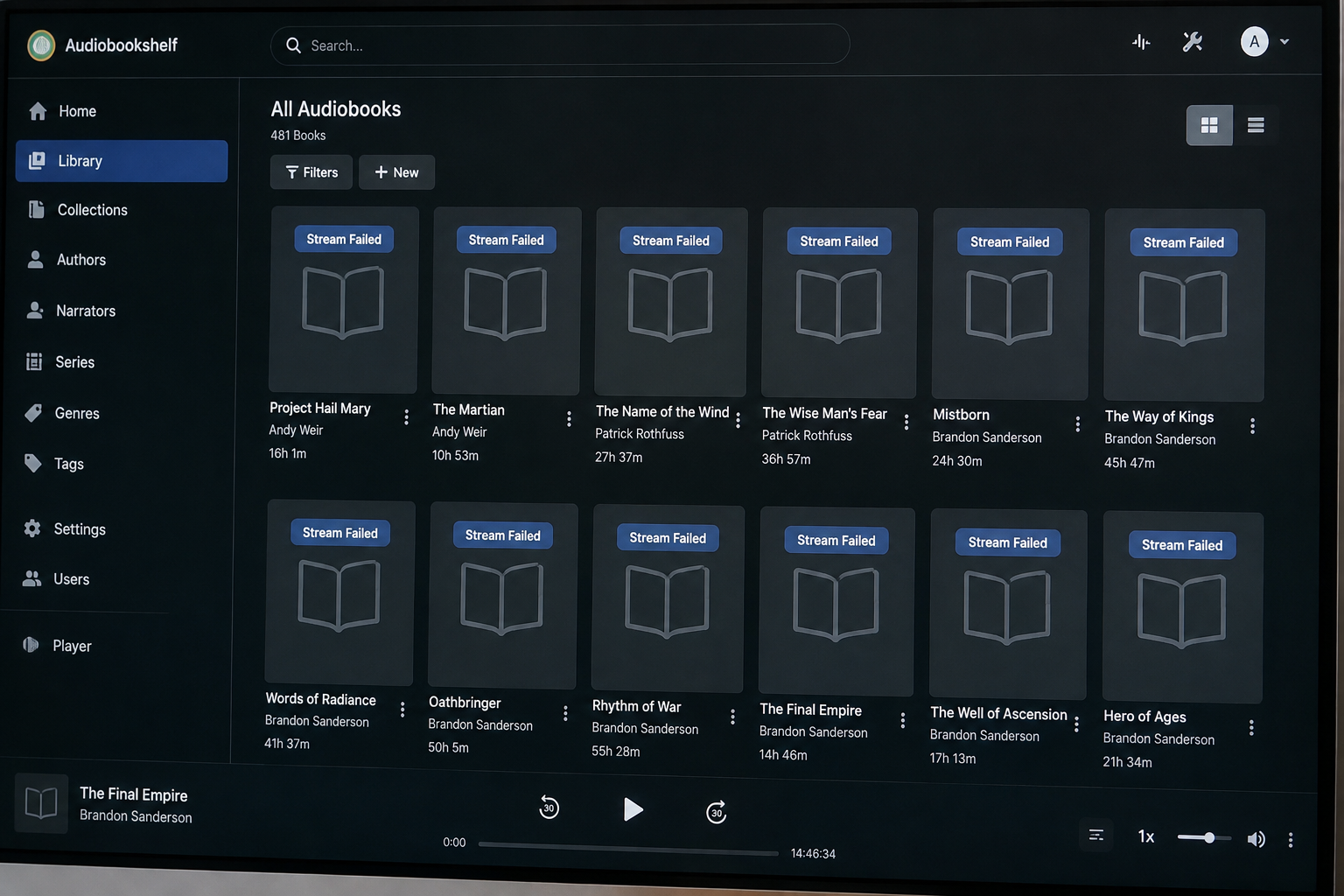
When Audiobookshelf suddenly starts showing “stream failed” errors at the same time that audiobook covers disappear, the two symptoms may be related.
The important clue is that these are normally different parts of the application. Audio playback may involve FFmpeg and temporary streaming data, while cover display depends on Audiobookshelf being able to read image files and its metadata/cache storage. When both stop working at once, it is often more useful to investigate the server’s storage, mounts, permissions, and recent container changes than to replace individual cover images or troubleshoot one audiobook at a time.
Audiobookshelf stores its database in /config and its metadata, cover and author images, logs, backups, and related data in /metadata. That shared storage layer makes a broken or inaccessible /metadata mount particularly important when streaming and covers fail together.
As of this research, the official Audiobookshelf GitHub releases page lists v2.36.0, released July 27, 2026, as the latest listed stable release. The project continues to receive active fixes, so checking the exact version running on the affected server is an important first step.
What “stream failed” actually means in Audiobookshelf
The message “stream failed” is not a diagnosis by itself. It is a symptom reported by the client when Audiobookshelf cannot successfully deliver the requested audio stream.
For some playback situations, Audiobookshelf creates an HLS stream using FFmpeg. HLS, or HTTP Live Streaming, breaks audio into smaller segments and provides a playlist telling the client what to request. Audiobookshelf’s own logs show these stream sessions creating files under paths such as:
/metadata/streams/<stream-id>/with FFmpeg writing an final-output.m3u8 playlist and media segments there.
That detail matters because it gives you a useful diagnostic shortcut.
If Audiobookshelf cannot create, write, read, or maintain its streaming files under /metadata/streams, playback can fail even though the audiobook itself is perfectly healthy.
The failure can also be caused by the media file, codec, FFmpeg, or the playback client. Audiobookshelf has documented examples where FFmpeg could not process particular audio streams or codecs, producing a stream failure even though the source file itself was usable elsewhere.
So the phrase “stream failed” should never automatically be interpreted as “the audiobook file is corrupted.”
Why disappearing covers are an important clue
Audiobookshelf does not keep every piece of cover-related data in one place.
The project documentation says the /metadata directory contains book metadata, cover and author images, logs, and backups. Audiobookshelf also maintains an image cache under /metadata/cache; that cache contains resized cover and author images used for faster loading.
At the library-item level, Audiobookshelf can also use a cover image stored with the audiobook itself. The library documentation explains that the server can extract the first embedded cover image from an audio file when an image is not already present in the book folder.
This creates several possible failure points:
| What you see | What it may indicate |
|---|---|
| One book has no cover | Individual metadata, image, or matching problem |
| Many covers show invalid images | Cover files, metadata paths, cache, permissions, or restore problem |
| All covers disappear at once | Server-wide storage, mount, cache, permission, or application problem |
| Streaming also fails at the same time | Strong reason to investigate /metadata, storage, permissions, or server state first |
| Covers return after a browser refresh but playback still fails | Likely separate playback/server issue |
| Covers fail only after container restart | Persistent storage or file-access problem becomes more likely |
There have been multiple Audiobookshelf issues involving invalid or missing covers, including cases involving restored backups, container restarts, embedded covers, and filesystem problems.
That does not mean every simultaneous failure is an Audiobookshelf bug. It means the symptom pattern is consistent with several real server-side failure modes that have occurred in the project.
The first thing to check: did the /metadata mount change?
For Docker installations, Audiobookshelf expects persistent mounts for /config and /metadata. The official documentation explicitly identifies /metadata as the location for metadata, cover images, logs, and backups.
A typical Compose configuration looks like:
volumes:
  - /path/to/config:/config
  - /path/to/metadata:/metadata
  - /path/to/audiobooks:/audiobooks
The exact host paths will be different on your server.
A surprisingly common cause of “everything broke suddenly” is not the audiobook collection itself, but a container recreation with a different mount configuration. This can happen after editing Docker Compose, migrating a server, restoring a stack, changing a NAS path, or using a container-management application that recreates the container differently.
Check the active mounts:
docker inspect audiobookshelfLook for the /config, /metadata, and audiobook mounts in the container’s mount information.
You can also check from inside the container:
docker exec -it audiobookshelf shThen:
ls -la /metadata
ls -la /metadata/cache
ls -la /metadata/streams
ls -la /config
The exact results vary by installation, but the objective is simple: does Audiobookshelf still see the same persistent metadata directory it used before the failure?
If /metadata is unexpectedly empty, points to the wrong storage, or cannot be accessed, do not start deleting caches or rescanning the entire library. Fix the mount first.
Permissions can break streaming and covers together
Another especially important possibility is filesystem permissions.
Audiobookshelf needs to write data. That includes streaming-session files and various metadata or image files. The project has documented cases where incorrect permissions prevented the server from creating /metadata/streams and /metadata/logs. In one reported case, the server failed with:
EACCES: permission denied, mkdir '/metadata/streams'EACCES means permission denied.
In plain English, Audiobookshelf tried to create or modify something but the operating system refused.
This can happen after:
- changing the Docker
user:setting - changing ownership of a mounted directory
- restoring files from another machine
- migrating between Docker, Podman, Debian, NAS, or another installation method
- modifying NAS permissions
- changing the host filesystem or storage account
The official Docker documentation currently notes that Audiobookshelf does not use PUID or GUID environment variables and says that running as another user should be done with Docker’s user: directive.
That distinction is important because copying a generic Docker configuration from another application can create a misleading “fix” that actually prevents Audiobookshelf from writing to its directories.
Check whether the container can write
A practical test on a Linux server is:
docker exec audiobookshelf sh -c 'touch /metadata/.abs-write-test && rm /metadata/.abs-write-test'If that fails with a permission error, you have a strong indication that the problem is filesystem access rather than the audiobook files themselves.
Do not blindly run recursive chmod 777 commands on the entire library. Broad permission changes can create security and ownership problems of their own. Determine which user the container runs as, inspect the ownership of the actual /metadata directory on the host, and correct that relationship deliberately.
Check available disk space before doing anything destructive
A full or nearly full disk can produce symptoms that look unrelated.
Audiobookshelf needs space not only for your permanent media but also for metadata, cached images, logs, backups, and temporary stream data. HLS streaming can create temporary files underneath /metadata/streams, so a storage problem in that location can directly affect playback. The Audiobookshelf project has also documented file-write failures during media and cover extraction.
Check:
df -hThen check inode availability:
df -iThis distinction matters because a filesystem can run out of inodes even when df -h still shows free space.
Also inspect the metadata directory:
du -sh /path/to/metadataA sudden accumulation of logs, backups, image cache files, or temporary data can consume the space Audiobookshelf needs.
Do not assume the cover cache contains your original covers
Audiobookshelf’s documentation distinguishes between the application’s file cache and other stored data.
The image cache under /metadata/cache stores resized cover and author images for faster loading. The official documentation says the cache can be cleared from server settings, and that Purge All Cache clears the entire file cache.
That means clearing the cache can be a legitimate troubleshooting step, but it should not be your first move when the server is simultaneously failing to stream.
Why?
Because cache corruption can explain bad images, but it does not necessarily explain a failure to create or serve streaming data. A permissions problem, broken /metadata mount, full filesystem, or damaged server state could produce both.
In other words, cache clearing is a troubleshooting step, not a diagnosis.
Check the Audiobookshelf logs before rescanning everything
Audiobookshelf provides several useful log locations.
The official documentation says:
- daily server logs are stored in
/metadata/logs/daily - library scan logs are stored in
/metadata/logs/scans - crash information is stored in
/metadata/logs/crash_logs.txt - if crash details are not there, you should also inspect the logs for the way the server is being run, such as Docker container logs
For Docker, start with:
docker logs --tail 200 audiobookshelfOr follow the log while reproducing the problem:
docker logs -f audiobookshelfThen try playing one audiobook.
You are looking for errors containing terms such as:
EACCES
permission denied
ENOENT
no such file or directory
ENOSPC
No space left on device
ffmpeg
Ffmpeg Err
/metadata/streams
cover
CoverManager
These messages are much more valuable than the generic “stream failed” message shown in the web interface.
Why ENOENT is different from EACCES
Two filesystem errors are especially useful to recognize.
EACCES means the file or directory exists, but Audiobookshelf does not have permission to use it.
ENOENT generally means the expected file or directory could not be found.
Audiobookshelf issue reports demonstrate both kinds of failure. For example, one playback problem showed FFmpeg attempting to use a stream file under /metadata/streams/... that no longer existed, producing a “No such file or directory” error.
That points toward a different problem than a simple permission failure.
Check whether the audiobook files themselves are still accessible
If the media mount changed, Audiobookshelf may still start normally while losing access to the actual audio files.
Inside the container, check:
ls -lah /audiobooksThen test one known audiobook directory:
ls -lah "/audiobooks/Author/Book Name"The actual path depends on your library structure.
This is worth checking because Audiobookshelf’s Docker documentation says the container needs the appropriate media mounts to access library files. The host path appears on the left side of a volume mapping and the container path appears on the right.
A bad mount can therefore create this deceptive situation:
The server interface loads → the database loads → books still appear in the library → but the server cannot actually reach the media or metadata files it needs.
A recent update can matter, but do not blame the update automatically
Audiobookshelf is actively developed and receives frequent releases. The official Docker documentation explains that :latest tracks the most recent stable release, while a specific version tag such as :2.19.0 pins the installation to a particular release.
The project currently lists v2.36.0 as a stable release on GitHub, dated July 27, 2026.
If your problem started immediately after an upgrade, that timing is worth investigating. However, a temporal connection is not proof that the release caused the problem.
Audiobookshelf’s own documentation also warns about container-manager update problems. It specifically notes that some managers can cache old images and recommends recreating or resetting the container when an update has not been applied correctly.
That creates an important distinction:
“The problem started after an update” does not necessarily mean “the new Audiobookshelf code is broken.”
The change may instead have altered the container image, mount state, user, filesystem permissions, or recreation behavior.
What about the known cover bugs?
Audiobookshelf has a history of genuine cover-related bugs, so the possibility should not be dismissed.
For example, one reported issue involved covers becoming invalid after restoring a backup even though cover.jpg files still existed in the audiobook directories. Another issue described embedded covers becoming invalid after restarting a Docker container, despite those covers remaining embedded in the audio files.
There have also been issues involving particular M4B embedded-cover extraction behavior.
However, those cases are usually more specific than the symptom pattern described here.
If every book suddenly loses its cover while playback also breaks, a server-wide dependency problem deserves attention before assuming that hundreds or thousands of individual covers have somehow become corrupted.
Should you purge the Audiobookshelf cache?
You can, but do it in the right order.
First confirm:
/metadatais the correct persistent mount.- Audiobookshelf can read and write
/metadata. - The disk has enough free space.
- The audiobook mount is present and readable.
- The logs do not show a more fundamental FFmpeg, filesystem, or server error.
Only then is cache cleanup a sensible next step.
Audiobookshelf’s official documentation states that Purge All Cache clears the file cache, while the API cache is an in-memory performance cache that normally clears automatically after database changes.
A cache purge therefore should not be treated as a magical “reset everything” button.
Should you rescan the whole library?
A full scan can help when metadata or cover extraction is actually the problem, but do not start with a full rescan when the server has a storage or permissions failure.
A scan can generate additional file operations, cover extraction, metadata writes, and other workload while the underlying fault remains unresolved.
Audiobookshelf’s documentation shows that scanning can involve reading audio metadata and extracting embedded cover artwork, while real-world issue logs demonstrate FFmpeg cover-extraction failures caused by filesystem I/O or permissions problems.
If /metadata or the media filesystem is broken, a large rescan may simply create a much larger set of errors.
A practical diagnosis path
The fastest way to narrow down a simultaneous “stream failed + all covers gone” incident is to work from the shared infrastructure outward.
| Test | Result | Most likely direction |
|---|---|---|
/metadata missing or wrong | Yes | Docker/Podman volume configuration |
/metadata exists but write test fails | Yes | Permissions/ownership |
| Disk nearly full | Yes | Storage exhaustion |
/metadata/streams cannot be created | Yes | Permission, storage, or mount issue |
| Audio mount missing | Yes | Media volume problem |
| FFmpeg reports invalid codec/input | Yes | Audio/codec-specific playback issue |
| One book fails but others work | Yes | Individual file or metadata issue |
| Covers fail everywhere but streams work | Yes | Image/cache/metadata issue |
| Covers and streams fail everywhere | Yes | Investigate shared server/storage layer first |
| Only one browser fails | Yes | Browser cache, client, proxy, or frontend issue |
This approach is better than repeatedly changing metadata because it tests the layers in the order most likely to explain the complete symptom set.
Could the reverse proxy be responsible?
Yes, but it becomes more likely when the Audiobookshelf server itself is functioning correctly inside the local network.
Audiobookshelf’s current installation documentation recommends a reverse proxy for Linux deployments and notes that proxy configurations can include WebSocket support.
A broken proxy can interfere with playback requests, authentication, or WebSockets, but it is less convincing as the sole explanation for all cover images disappearing from the server’s library view.
A simple test is to access Audiobookshelf directly on its local server address, bypassing the public hostname or reverse proxy.
If direct local access works but the proxied address does not, then investigate the proxy.
If both fail in exactly the same way, move the investigation back toward Audiobookshelf, storage, permissions, and the host system.
What not to do
There are a few tempting reactions that can make recovery harder.
Do not delete the /config directory. That directory contains the SQLite database used by Audiobookshelf.
Do not delete your audiobook folders to force a clean import.
Do not rebuild the server from scratch before confirming the persistent mounts.
Do not recursively change permissions on your entire media tree just because a web search suggested chmod 777.
Do not assume that missing covers mean the original artwork is gone.
Audiobookshelf can store or derive cover information from multiple locations, and the official documentation makes clear that its metadata and cache storage are distinct from the audio library itself.
What if the covers are still visible in the book editor?
That is a particularly useful clue.
If opening a book shows the correct cover in its editing interface while the library grid displays an invalid or blank image, the underlying artwork may still exist. Audiobookshelf has previously had cases where the image file was present but the normal library presentation could not serve it correctly.
In that situation, deleting and re-uploading thousands of covers is usually the wrong first response.
Look instead at:
- the recorded cover path
/metadata/cache- filesystem accessibility
- container mounts
- permissions
- recent restores or migrations
- the server logs
A note about backups
Audiobookshelf’s documentation contains an important warning about what its backups include.
Database backups include the Audiobookshelf database and cover images stored in the metadata/ directory, but they do not include media files or covers stored with individual library items.
That distinction matters during disaster recovery.
A backup restore can successfully restore the database while still leaving questions about files that lived elsewhere. Conversely, an audiobook file may contain an embedded cover even when there is no standalone cover file in its folder. Audiobookshelf can extract that embedded artwork during scanning.
When the problem is probably an Audiobookshelf bug
A genuine application defect becomes more plausible when:
- the same files work outside Audiobookshelf
- the server has healthy storage
/metadatais writable- mounts are correct
- permissions are correct
- FFmpeg is functioning
- the problem began on a specific Audiobookshelf release
- logs show a repeatable application exception rather than a filesystem error
- another client reproduces the same server-side failure
Audiobookshelf’s issue tracker contains examples of playback failures caused by FFmpeg processing, cover extraction problems, backup restoration behavior, and other application-level defects.
That is why the exact Audiobookshelf version and server log are so important when reporting a problem upstream.
The project actively tracks bugs, and the latest releases also include security, authentication, scanning, and other fixes.
The most likely explanation when everything failed at once
The combination of “stream failed” plus “all covers disappeared” is more informative than either symptom alone.
Because Audiobookshelf uses /metadata for important application data, cover images, logs, and streaming-session storage, a problem in that layer can affect apparently unrelated features.
That makes the priority order fairly clear:
First check the /metadata mount. Then check permissions. Then check disk space and inode availability. Then inspect Audiobookshelf and Docker logs. Then verify the media mount. Only after those checks should you start aggressively rescanning libraries or rebuilding covers.
If the log contains an error such as EACCES, ENOENT, ENOSPC, a missing /metadata/streams path, or a failed FFmpeg operation, that message is far more useful than the generic text “stream failed.”
And most importantly, missing covers do not necessarily mean missing cover art, and a failed stream does not necessarily mean damaged audiobook files.
In a self-hosted application such as Audiobookshelf, a sudden cluster of failures often points first to the infrastructure underneath the application: the mounted filesystem, permissions, available storage, container state, or a recent migration/update. The safest troubleshooting strategy is therefore to identify the failing layer before changing the library itself.
Also Read: VideoDB API Upload From URL Documentation and Examples

1 Comment
Pingback: Trials in Tainted Space Save Editor | How to Edit TiTS Saves Safely