


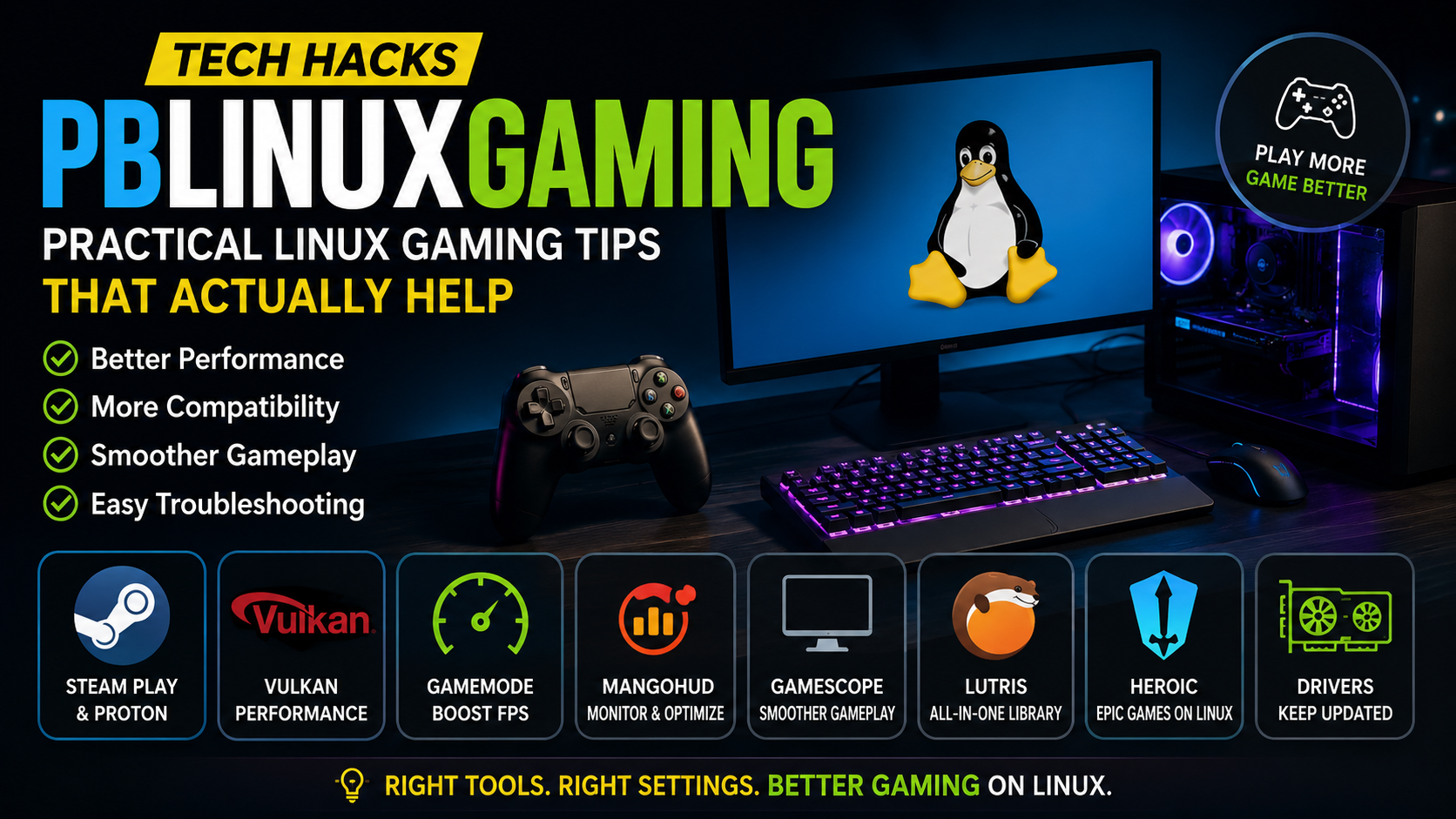
When people search for “tech hacks PBLinuxGaming,” they are generally looking for practical ways to make gaming on Linux faster, smoother, more compatible, and easier to troubleshoot. PBLinuxGaming itself is a technology site with dedicated Gaming, Hacks, and Tech sections, and its current material focuses on Linux gaming and broader computing topics.
The important distinction is that Tech Hacks PBLinuxGaming is not the name of a single Linux gaming application. It is better understood as a search phrase around Linux gaming tips, optimizations, troubleshooting methods, and tools. The PBLinuxGaming site itself makes some very broad performance claims, including that it can run all Windows games and deliver exceptionally high performance, but those claims are not supported by the site’s technical documentation or by the underlying Linux gaming projects.
A more useful approach is to focus on the technologies that actually make Linux gaming work: Steam Play and Proton, graphics drivers, Vulkan, GameMode, MangoHud, Gamescope, Lutris, and alternative launchers such as Heroic. These tools solve different problems, and knowing which one to use is much more valuable than applying random “FPS hacks.”
What Does Tech Hacks PBLinuxGaming Actually Mean?
The simplest definition is practical Linux gaming optimization.
A Linux gaming “hack” does not necessarily mean a secret trick. It can be something as simple as selecting an appropriate Proton version, updating a graphics stack, measuring frame times with an overlay, or changing a game-specific configuration.
Linux gives users considerable control over the software stack. That means a gamer can influence the operating system, graphics driver, compatibility layer, launch configuration, compositor, and game settings. The downside is that more control also creates more opportunities for incorrect configuration.
The PBLinuxGaming website currently presents itself around technology, gaming, and hacks, but its Hacks category currently contains no substantive archive content. This makes it especially important to separate the site’s branding and terminology from independently documented Linux gaming technology.
The safest interpretation of the keyword is therefore:
Tech Hacks PBLinuxGaming = practical, evidence-based techniques for improving or troubleshooting Linux gaming.
That definition is much more useful to a gamer than treating it as a mysterious software package.
Why Linux Gaming Needs the Right “Hack,” Not Every Hack
Gaming performance is determined by a chain of components:
Game → compatibility layer or native Linux build → graphics API → driver → kernel → hardware
A problem anywhere in that chain can affect the final result.
For example, a Windows game running through Proton may depend on Wine compatibility components, Vulkan translation layers, graphics drivers, shader compilation, and the game’s own configuration. Changing an unrelated CPU setting will not necessarily solve a graphics problem.
This is why a common mistake is to apply several optimizations simultaneously. If performance improves afterward, there is no reliable way to know which change actually helped.
A better workflow is:
Measure → change one thing → test → compare → keep or revert.
That is the real foundation of effective Linux gaming optimization.
Start With a Performance Baseline
Before changing system settings, measure what the computer is doing.
This is where MangoHud is particularly useful. MangoHud is a Vulkan and OpenGL overlay designed to display information such as FPS, temperatures, CPU/GPU load, and related performance data. The project’s documentation also supports logging performance information for later analysis.
For example, a player might record:
| Metric | Before Change | After Change |
|---|---|---|
| Average FPS | 72 | 75 |
| 1% low FPS | 45 | 49 |
| GPU utilization | 97% | 98% |
| CPU utilization | 54% | 55% |
| GPU temperature | 71°C | 72°C |
The numbers above are only an example of how to compare results; they are not a benchmark for Linux gaming in general.
The important point is that average FPS alone can be misleading. A game that reports 100 FPS but frequently produces severe frame-time spikes can feel worse than a game maintaining a stable 80 FPS.
How to Enable MangoHud in Steam
For many native or Proton-based Steam games, MangoHud can be enabled through the game’s launch options:
mangohud %command%The MangoHud project documents this usage specifically for Steam.
For a Flatpak-based Steam installation, however, sandbox permissions can affect how overlays and related components operate. That is one reason Linux gaming troubleshooting sometimes requires looking beyond the game itself.
Use Proton Before You Start Modifying the Kernel
One of the most important technologies in Linux gaming is Proton.
Valve describes Proton as a Steam compatibility tool that allows Windows games to run on Linux, using Wine together with additional components. Valve also recommends that most users use the Proton versions supplied through Steam rather than immediately building or modifying Proton themselves.
This makes Proton one of the first places to investigate when a Windows game does not behave correctly.
Steam also explicitly explains that Steam Play can potentially run Windows-only games on Linux, while maintaining a separate list of games that have native Linux support.
The word “potentially” matters.
Proton does not turn every Windows game into a guaranteed Linux-compatible title. Compatibility can depend on graphics APIs, launchers, DRM, multimedia components, networking systems, anti-cheat software, and game-specific behavior.
That means changing from one Proton version to another can sometimes help with a regression, but repeatedly cycling through Proton versions without a reason is not a reliable optimization method.
Proton Is a Compatibility Layer, Not a Magic Performance Switch
A compatibility layer translates or implements interfaces expected by software running under another operating system.
In simple terms, a Windows game expects Windows APIs. Proton provides an environment that allows much of that Windows software to operate on Linux.
The rendering path can become more complicated because graphics APIs may also need translation.
For example:
Direct3D game → translation layer → Vulkan → Linux graphics driver → GPU
This is why Linux gaming performance is influenced not just by the CPU and GPU, but also by the software stack connecting them.
A useful diagnostic question is therefore:
“Is this game CPU-limited, GPU-limited, shader-limited, compatibility-limited, or blocked by another component?”
Without answering that question, changing random launch options is mostly guesswork.
GameMode Can Apply Temporary System Optimizations
Another frequently useful Linux gaming tool is GameMode, developed by Feral Interactive.
GameMode is a daemon/library combination that lets games request temporary system optimizations. Its documented capabilities include adjustments involving the CPU governor, I/O priority, process niceness, scheduler behavior, GPU performance modes, CPU core behavior, and custom scripts.
The important word is temporary.
GameMode was designed so that optimizations can be applied when a game requests them and then returned to normal behavior afterward. This is preferable to permanently forcing an aggressive performance configuration across the entire desktop.
However, GameMode is not guaranteed to increase FPS in every game. If your GPU is already fully utilized, a CPU-governor change may have little effect. Likewise, if the game is limited by shader compilation or network latency, changing CPU scheduling will not solve the actual bottleneck.
Gamescope Is Useful for More Than Steam Decks
Gamescope is another important component in the modern Linux gaming ecosystem.
Valve’s project describes Gamescope as a SteamOS session compositing window manager and a micro-compositor. It can run applications in nested environments and is designed to provide more controlled presentation and scaling behavior.
For gamers, that means Gamescope can be useful when they need more control over:
- Resolution and scaling
- Full-screen behavior
- Frame presentation
- Display configuration
- SteamOS-style gaming environments
It should not, however, be treated as an automatic FPS booster.
Gamescope itself adds another layer to the graphics pipeline. A configuration that solves a display or scaling issue for one system can create a compatibility problem on another.
Current development also shows why blindly copying launch commands from old guides is risky. For example, a 2026 Gamescope issue documents a compatibility problem between its internal Wayland compositor and Wine’s native Wayland driver, with XWayland remaining the reported workaround in that situation.
The Linux graphics stack is actively evolving, so commands from older tutorials should not automatically be assumed to remain correct.
Use the Correct Graphics Driver
One of the most practical Linux gaming “hacks” is also one of the least glamorous:
Use an appropriate, current graphics driver stack for your GPU.
For Linux gaming, the graphics stack includes more than one package. Depending on the GPU and distribution, it can involve the kernel driver, Mesa components, Vulkan drivers, firmware, and userspace libraries.
If a game suffers from:
- graphical corruption,
- missing textures,
- crashes at launch,
- extremely low FPS,
- Vulkan initialization errors,
- unexpected stutter,
the driver stack should be investigated before applying obscure kernel parameters.
This is particularly important because AMD, Intel, and NVIDIA hardware do not necessarily use identical Linux graphics stacks or configuration methods.
A tweak designed for an AMD/Mesa environment should not be assumed to apply unchanged to an NVIDIA system, and vice versa.
Do Not Confuse FPS With Latency
A higher FPS number does not automatically mean better gameplay.
There are at least three related but different concepts:
FPS measures how many frames are displayed.
Frame time measures how long each frame takes to produce.
Input latency measures how long it takes for an action such as a mouse movement or button press to become visible on screen.
A system can have high average FPS while still suffering from uneven frame delivery.
This is why metrics from tools such as MangoHud can be more informative than an FPS counter alone. MangoHud is specifically designed to expose additional CPU/GPU and frame-related information rather than simply showing a single number.
Lutris Is Useful for Games Outside the Normal Steam Workflow
Linux gaming is not limited to Steam.
Lutris provides a desktop client for managing games using different runners and configurations. Its documentation supports Wine-based runners and game-specific configuration, including selecting Wine versions and controlling options such as DXVK and synchronization features.
This can be particularly helpful when a game comes from a non-Steam source or requires a customized Wine configuration.
The important feature is the ability to keep game-specific settings separate.
One title may require one runner version while another works better with a different configuration. Lutris allows those settings to be managed per game rather than forcing one global Wine configuration onto everything.
That is generally a better strategy than globally changing a setting merely because it fixed one title.
Heroic Gives Linux Gamers Another Launcher Option
For Epic, GOG, and Amazon games, Heroic Games Launcher is another established option.
Its current project documentation says Heroic is an open-source launcher for Linux, Windows, and macOS, with Linux support for launching games from Epic Games Store, GOG, and Amazon Games through its associated components. It also supports Wine and Proton on Linux and provides ProtonDB compatibility information within the launcher.
That makes Heroic particularly interesting for gamers who want a single graphical interface for several game stores without relying exclusively on their Windows-oriented launcher software.
Again, though, launcher support does not guarantee game compatibility. Individual titles can still encounter anti-cheat, DRM, launcher, or multiplayer limitations.
Anti-Cheat Remains One of the Biggest Linux Gaming Limitations
This is an area where oversimplified Linux gaming advice can become misleading.
Valve’s Steamworks documentation states that Proton supports some common anti-cheat middleware, including Easy Anti-Cheat and BattlEye. But the documentation also makes clear that support depends on game-side configuration and developer involvement.
The Proton source tree itself contains dedicated components for Easy Anti-Cheat and BattlEye integration, demonstrating that these systems are part of the technical compatibility work rather than a simple switch users can universally enable.
Some anti-cheat systems still create hard barriers. A 2026 Proton issue, for example, discusses games using anti-cheat behavior that depends on Windows kernel-level functionality, which cannot simply be loaded into the Linux kernel through Proton.
That is why a statement such as “Linux can run every Windows game” should not be treated as technically established. The PBLinuxGaming About page makes that broad claim, but Valve’s own documentation describes Proton compatibility in much more qualified terms.
ProtonDB Is Useful Before You Install or Troubleshoot a Game
One of the most practical resources for Linux gamers is ProtonDB, which describes itself as a community-driven database of Linux and Steam Deck compatibility reports.
This is valuable because compatibility can be game-specific.
Instead of searching for a generic statement such as “Does Proton work?”, look up the exact title and check:
- Which Proton versions users report working
- Whether multiplayer functions correctly
- Whether launchers cause problems
- Whether special launch options are required
- Whether a recent game update changed behavior
Community reports are not equivalent to official certification, but they can reveal practical problems that generic installation guides do not cover.
A Better PBLinuxGaming Troubleshooting Method
When a Linux game fails, resist the temptation to change ten settings.
Use a diagnostic sequence.
1. Confirm Whether the Game Is Native or Windows-Based
A native Linux game and a Windows game running through Proton have different failure paths.
If the game uses Proton, investigate Proton and its logs rather than assuming the Linux distribution itself is broken.
2. Check the GPU Driver
Confirm that Vulkan and the appropriate graphics stack are functioning before changing performance parameters.
A broken graphics stack can produce symptoms that look like “low FPS” but are actually driver or rendering failures.
3. Test Without Custom Launch Options
A copied launch command can itself be the problem.
Remove unnecessary environment variables, overlays, debugging options, and custom compatibility settings. Start from a clean configuration.
4. Compare Proton Versions Carefully
If a previously working title suddenly stops launching after an update, testing another Proton release can be useful.
Do this as a controlled test rather than permanently installing every available compatibility tool.
5. Check Compatibility Reports
Use ProtonDB and the game’s recent reports to determine whether the issue is already known.
6. Only Then Investigate Advanced Tweaks
Kernel parameters, CPU pinning, custom synchronization settings, alternative compositor configurations, and other advanced changes should come after simpler causes have been ruled out.
This approach saves time and makes troubleshooting reproducible.
Common Linux Gaming “Hacks” and What They Really Do
| Technique | Main Purpose | Automatically Improves FPS? | Risk Level |
|---|---|---|---|
| Proton version change | Game compatibility | Sometimes | Low |
| MangoHud | Performance monitoring | No | Low |
| GameMode | Temporary system optimization | Sometimes | Low |
| Gamescope | Presentation, scaling, compositor control | Not inherently | Medium |
| Lutris runner configuration | Non-Steam/Wine compatibility | Sometimes | Low–Medium |
| Heroic | Alternative game-store launcher | No | Low |
| Graphics driver update | Compatibility/performance fixes | Sometimes | Low–Medium |
| Kernel tweaking | System behavior customization | Highly workload-dependent | Medium–High |
| GPU overclocking | Higher hardware clocks | Potentially | High |
The table highlights an important principle: the safest changes are often diagnostic or compatibility-oriented rather than aggressive performance modifications.
Why Random Kernel Tweaks Are Often Overrated
The Linux kernel is responsible for fundamental operating-system functions such as scheduling, memory management, device interaction, and more.
Because the kernel is so important, it is tempting to believe that changing kernel parameters will produce large gaming improvements.
Usually, that is not the first place to look.
A kernel modification can affect the entire system, while the actual gaming limitation may be a GPU driver, game engine, shader workload, CPU bottleneck, or compatibility issue.
That does not mean kernel experimentation is useless. Advanced users may have legitimate reasons to customize kernels or scheduler behavior, but such changes should be measured and justified, not copied from a list of “secret FPS commands.”
What About CPU Governors and Performance Modes?
CPU frequency and scheduling behavior can influence responsiveness and performance, especially under certain workloads.
GameMode specifically provides mechanisms related to CPU governor selection and process/system prioritization.
But there is no universal rule that “performance mode = more FPS.”
If a game is GPU-bound, changing CPU behavior may make almost no difference. On a modern desktop with adequate cooling and a well-configured driver stack, the gain may also be too small to justify additional power consumption or heat.
The correct question is therefore not:
“Which CPU tweak gives the biggest FPS boost?”
It is:
“Is my game actually limited by CPU behavior?”
Why Shader Compilation Can Feel Like a Gaming Problem
A game can stutter even when average FPS appears healthy.
One reason is shader compilation.
Shaders are small programs used by the graphics pipeline. Before the GPU can use certain shaders efficiently, they may need to be compiled for the relevant environment.
On Linux, Proton-based games can involve additional layers in the graphics path, making shader handling an important part of the experience.
This is another example of why “more FPS” is not always the correct optimization target. Reducing intermittent frame-time spikes can produce a much more noticeable improvement in playability than increasing an already-high average FPS number.
Flatpak Can Change the Troubleshooting Equation
Linux applications distributed through Flatpak run within a sandboxed environment.
That can improve application isolation, but it also means that an application may not have unrestricted access to the host system.
This becomes relevant with software involving:
- Game libraries
- Controller devices
- Overlays
- Debugging tools
- External executables
- Files outside the application’s normal sandbox
The community-maintained Steam Flatpak, for example, has documented limitations and issue reports related to its interaction with Steam’s Linux runtime environment. Valve’s own Steam Runtime documentation explicitly notes that the Flathub Steam package is a community package rather than an officially supported Valve build.
That does not mean Flatpak is bad for gaming. It means the packaging method itself can become part of the troubleshooting process.
A Practical “Tech Hacks PBLinuxGaming” Workflow
For most users, the following order is far more sensible than hunting for secret tweaks:
Install updates → confirm graphics drivers → establish a performance baseline → verify game compatibility → use Proton where appropriate → test GameMode/MangoHud → adjust game settings → investigate advanced configuration only when needed.
This sequence works because every stage answers a different question.
You first establish whether the system is healthy. Then you identify the game’s compatibility path. Then you measure the problem. Only after that should you optimize.
The result is a configuration that is understood rather than merely copied.
What Tech Hacks PBLinuxGaming Should Not Promise
There are several claims that should immediately trigger skepticism.
A Linux gaming guide should not promise that one tweak will:
- Make every game run faster
- Turn any PC into a high-end gaming machine
- Make every Windows game compatible
- Eliminate all stutter
- Guarantee lower latency
- Work identically on AMD, Intel, and NVIDIA
- Remain correct across every Linux distribution
The current PBLinuxGaming About page uses language suggesting extremely broad compatibility and performance, including claims that it can run all Windows games and leave Windows behind. Those statements are considerably broader than what Valve’s official Proton documentation supports.
A technically responsible Linux gaming article should instead explain conditions, limitations, and trade-offs.
The Most Useful Linux Gaming Tools at a Glance
| Tool | What It Is | Best Use |
|---|---|---|
| Proton | Windows-game compatibility technology for Steam | Running Windows games on Linux |
| MangoHud | Performance overlay | Measuring FPS, temperatures, CPU/GPU load |
| GameMode | Temporary optimization service | Applying selected system optimizations during games |
| Gamescope | Micro-compositor | Scaling, display control, SteamOS-style environments |
| Lutris | Game management client | Wine-based and non-Steam game management |
| Heroic | Multi-store game launcher | Epic, GOG, and Amazon games |
| ProtonDB | Community compatibility database | Checking real-world game compatibility |
These are real projects with documented functionality; they are more meaningful starting points than an undefined “magic optimization” package.
Is Linux Gaming Better Than Windows?
There is no universal answer.
Linux can offer major advantages for users who value control, open-source software, customization, SteamOS-style environments, and compatibility technology such as Proton.
Windows still has advantages for certain games and software ecosystems, particularly where developers or anti-cheat providers do not support Linux.
The right platform therefore depends heavily on the games you actually play.
A player focused on single-player Steam games may have a very different experience from someone who depends on competitive multiplayer titles using restrictive anti-cheat systems.
Are These Linux Gaming Hacks Safe?
Some are relatively low-risk.
Using MangoHud to monitor performance is generally a measurement activity rather than a fundamental system modification. Selecting a different Proton version through Steam is also much less invasive than modifying kernel parameters.
The risk increases when you start changing:
GPU clocks, voltages, kernel parameters, low-level scheduler behavior, system services, or undocumented launch variables.
GameMode’s own example configuration even warns that GPU optimization features such as overclocking should be treated carefully and used at the user’s own risk.
The safest philosophy is therefore:
Do not optimize what you have not measured, and do not modify what you do not understand.
FAQ
What is Tech Hacks PBLinuxGaming?
It is best understood as a search term describing Linux gaming tips, optimization techniques, compatibility advice, and troubleshooting practices, rather than the official name of one software package. The PBLinuxGaming website currently organizes content around Tech, Gaming, and Hacks categories.
Is PBLinuxGaming a Linux distribution?
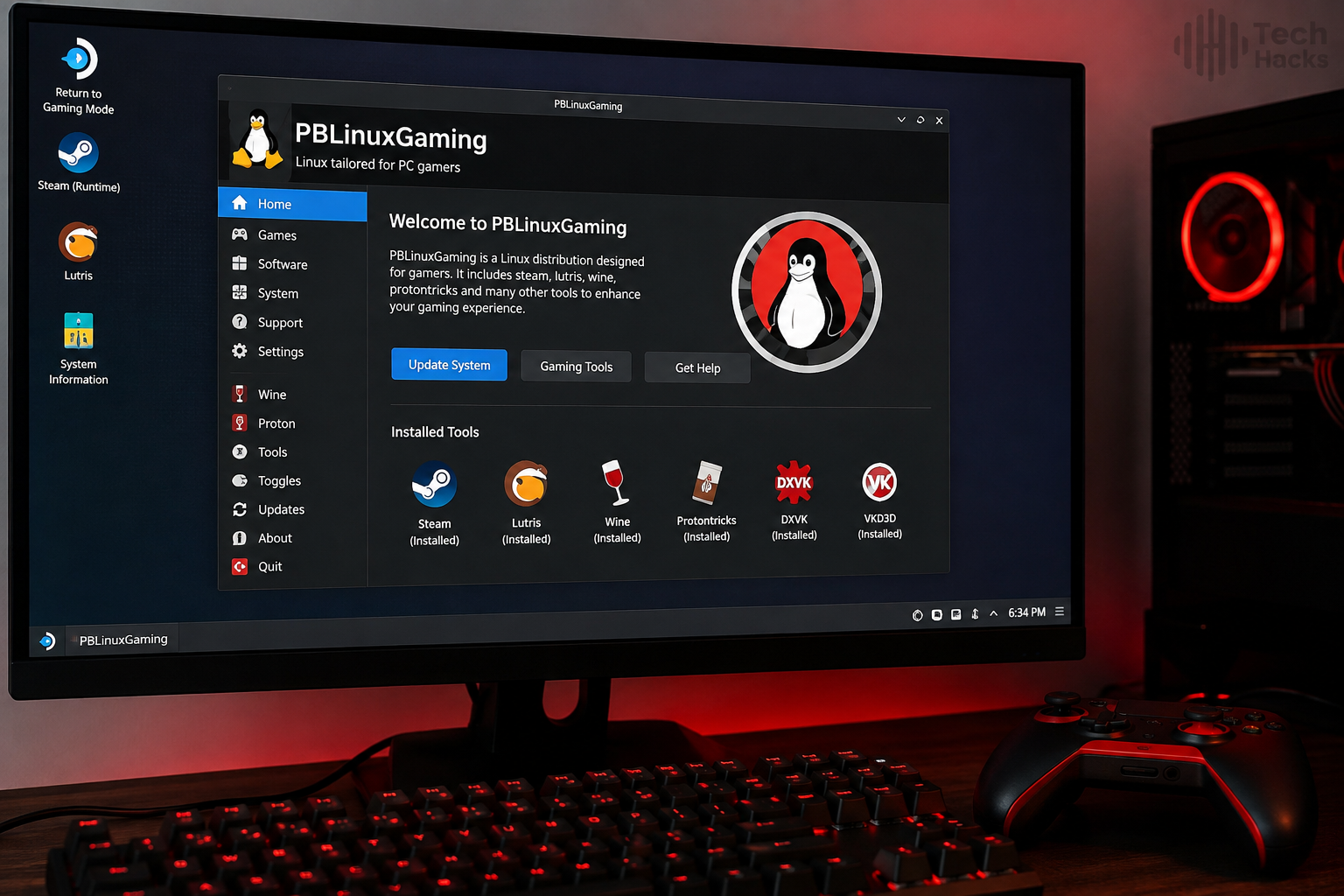
The available PBLinuxGaming material does not establish it as a Linux distribution. Its current website presents itself as a technology and gaming information platform.
Can Proton run Windows games on Linux?
Yes. Valve describes Proton as a compatibility tool that allows Windows games to run through Steam on Linux. However, compatibility is game-dependent, so Proton should not be interpreted as a guarantee that every Windows title will work.
Does GameMode always increase FPS?
No. GameMode can apply temporary optimizations involving CPU, process, I/O, scheduling, and some GPU-related settings, but the actual benefit depends on the workload and existing system configuration.
What is the easiest way to measure Linux gaming performance?
MangoHud is one of the most practical choices because it can display FPS, CPU/GPU load, temperatures, and other metrics directly during gameplay.
Why does a game work on Windows but not Linux?
Common causes include game-specific Proton compatibility problems, anti-cheat restrictions, launchers, DRM, graphics-stack issues, or other Windows-specific dependencies. Proton supports some anti-cheat systems, but support depends on the game’s implementation and developer configuration.
Should I use every Linux gaming tweak I find online?
No. Apply one meaningful change at a time, measure the result, and revert changes that do not solve a demonstrated problem. This is safer and produces more reliable results than stacking unrelated tweaks.
Is Linux gaming ready for everyone?
Linux gaming is a practical option for many players, particularly with Steam and Proton, but it is not universally equivalent to Windows for every game. Compatibility varies by title, and anti-cheat remains a significant factor for some multiplayer games.
Final Takeaway
The most useful interpretation of Tech Hacks PBLinuxGaming is not a collection of secret commands that magically transforms a Linux PC into a faster gaming machine. It is a method of understanding and optimizing the Linux gaming stack.
The strongest practical tools are already well documented: Proton for Windows-game compatibility, MangoHud for measurement, GameMode for temporary system optimization, Gamescope for controlled presentation, Lutris for flexible game management, Heroic for several non-Steam stores, and ProtonDB for real-world compatibility reports.
The real “hack” is the process itself: measure first, identify the bottleneck, change one variable, test the result, and keep the configuration only when the evidence shows that it helped. That approach produces a Linux gaming system that is not only potentially faster, but also more stable, understandable, and easier to maintain.
Also Read: Tech Guru WaveTechGlobal | What It Is, Who Is Behind It, and What You Can Verify in 2026

2 Comments
Pingback: FutureTechGirls Kickass Tips | 7 Smart Ways to Build a Tech Career in 2026
Pingback: FintechZoom.io Stock Market Course | What It Offers and What Investors Should Verify