


Appcelerator Titanium SDK build iOSThe project is now maintained by TiDev, although the older Appcelerator name remains common in documentation, existing projects, search queries, and developer discussions. Titanium SDK continues to target native iOS and Android applications, and its current open-source project is hosted under the TiDev organization.
For iOS developers working with Titanium today, the most important practical point is that the modern workflow is centered on the Titanium CLI (ti) plus Apple’s Xcode toolchain. You write Titanium JavaScript, the Titanium SDK processes it, and the iOS build system ultimately produces an application that can run on an iPhone, iPad, or simulator. Unlike a web-based hybrid application, Titanium’s goal is to produce a native application rather than simply displaying a web page inside a wrapper.
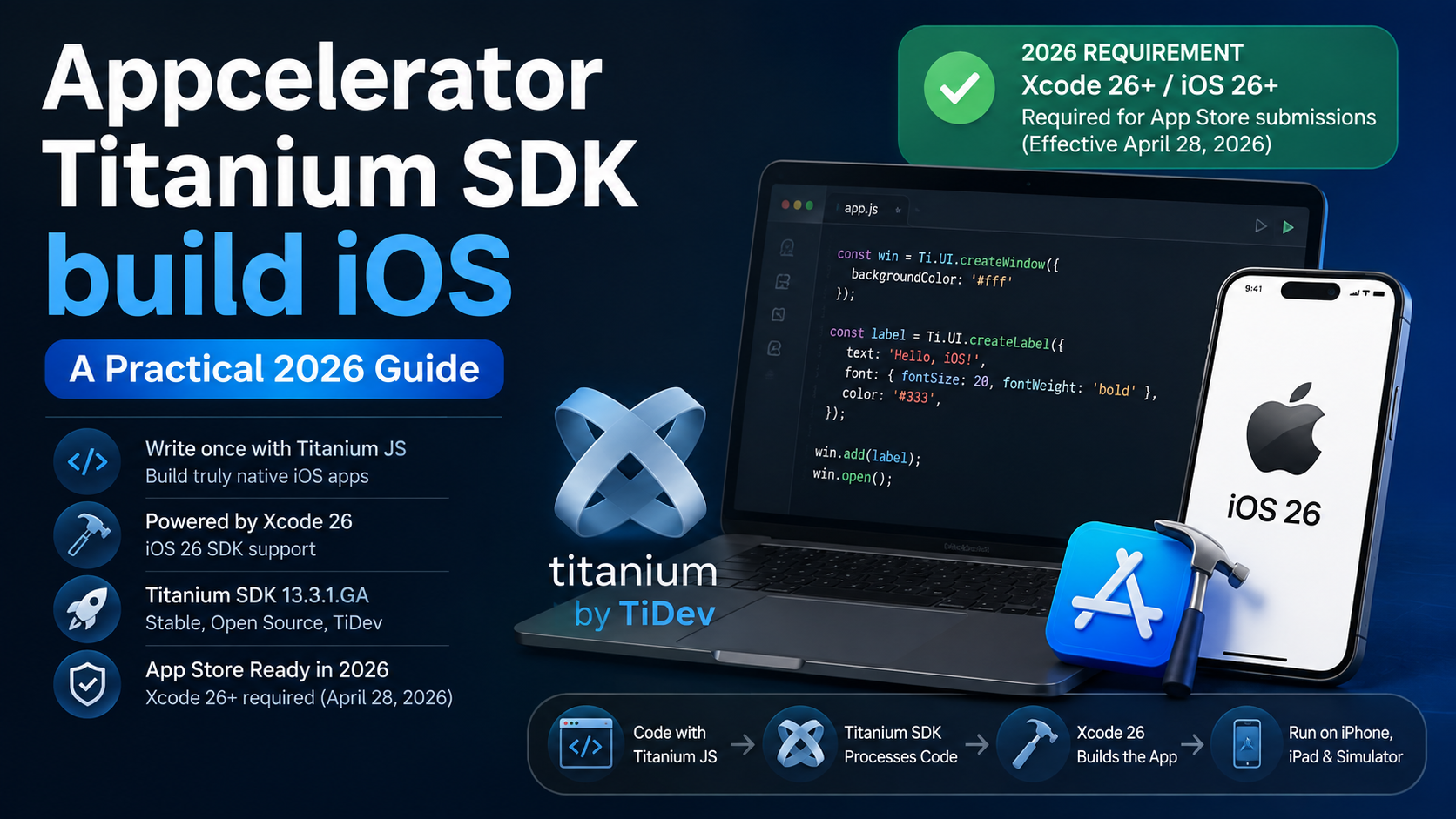
There is also a crucial 2026 consideration: Apple now requires apps uploaded to App Store Connect to be built with Xcode 26 or later using the iOS 26 SDK or later, a rule that took effect on April 28, 2026. Titanium SDK 13.0.0 was specifically released with full iOS 26 and Xcode 26 support, while the current stable Titanium release is 13.3.1.GA, published in July 2026.
What “Appcelerator Titanium SDK Build for iOS” Actually Means
The phrase “Appcelerator Titanium SDK build iOS” usually refers to the process of taking a Titanium project and turning it into an iOS application using the Titanium command-line tools.
Think of the process as a chain:
Your JavaScript application → Titanium SDK → generated native iOS project/build artifacts → Xcode tools → iOS app
The Titanium CLI controls the build process. Apple’s developer tools provide the underlying compiler, SDKs, simulator support, code-signing infrastructure, and other pieces required for an iOS application.
The distinction matters because installing Titanium alone does not give you a complete iOS build environment. A Mac with Apple’s development tools is required for iOS builds, and Titanium’s own CLI documentation explicitly states that you need a Mac to build for iOS.
The current Titanium project is also no longer an Appcelerator-branded commercial SDK in the old sense. The software is maintained as an open-source project under TiDev, with Titanium continuing as the name of the SDK and platform. The Titanium project repository states that it is licensed under the Apache License 2.0 and supports native iOS and Android applications.
The Current Titanium iOS Toolchain in 2026
A reliable modern setup consists of several pieces that work together.
| Component | Purpose |
|---|---|
| macOS | Required for building the iOS application |
| Xcode | Apple’s IDE and iOS toolchain |
Titanium CLI (ti) | Creates, configures, and builds Titanium projects |
| Titanium SDK | Provides Titanium’s JavaScript-to-native application framework |
| Node.js | Required by the Titanium CLI |
| Apple Developer signing assets | Needed when deploying to devices and distributing apps |
Titanium’s current CLI documentation states that the CLI requires Node.js 20.18.1 or newer. The same documentation recommends installing a stable Titanium SDK through ti sdk install latest, followed by ti setup and ti info to verify the development environment.
The important 2026 change is that Xcode compatibility now matters even more than it did in older Titanium projects. Titanium SDK 13.0.0 introduced full support for Xcode 26 and iOS 26, and Apple’s own documentation confirms that Xcode 26 contains the iOS 26 SDK.
Which Titanium SDK Should You Use?
As of August 28, 2026, the official Titanium SDK download page lists 13.3.1.GA as the latest stable release. It was published on July 21, 2026. The previous 13.3.0.GA release was published on July 1, while 13.2.0.GA was published on April 8.
The 13.3.1.GA release is a patch release addressing high-priority issues from the preceding version. Its documented iOS changes include fixes related to LiveView restart behavior and a restart method, and it updates the bundled Hyperloop module to 8.0.1.
For a new project in 2026, using the latest stable SDK is generally the most sensible starting point rather than selecting an old SDK simply because an older tutorial happens to mention it.
The Titanium documentation also makes an important distinction between the globally selected SDK and the SDK actually used by an application. The application can specify its SDK in tiapp.xml; otherwise other CLI configuration determines which SDK is used. The documented precedence starts with the application’s sdk-version entry, followed by the --sdk command-line option and other configuration settings.
A useful command sequence is:
ti sdk install latest
ti sdk list
ti sdk select <version>
The first installs the current stable SDK, the second shows installed versions, and the third selects an SDK for CLI operations.
Why Xcode 26 Matters for Titanium iOS Builds
For current iOS development, this is the requirement developers should pay the most attention to.
Apple announced that beginning April 28, 2026, iOS and iPadOS apps submitted to App Store Connect must be built with the iOS 26 SDK or later, which means using Xcode 26 or later for normal App Store submissions.
Titanium was updated specifically for this transition. Titanium SDK 13.0.0, released September 15, 2025, added full support for iOS 26 and Xcode 26 and updated its iOS build infrastructure accordingly.
Apple’s Xcode documentation also confirms that Xcode 26 requires macOS Sequoia 15.6 or later and contains the iOS 26 SDK.
This creates a practical compatibility chain:
macOS → Xcode → iOS SDK → Titanium SDK → project dependencies/modules
A mismatch anywhere in that chain can produce build errors even when your JavaScript code itself is perfectly valid.
For example, an old Titanium project might still compile with an older SDK on an older machine, but attempting to use that project for a current App Store submission can become a completely different problem because Apple has its own minimum submission requirements.
How to Check Whether Your Mac Is Ready
The Titanium CLI provides a useful diagnostic command:
ti infoFor iOS-specific information, Titanium’s documentation also shows:
ti info -t iosThe CLI uses this information to report details about detected development dependencies such as Xcode and iOS SDK installations.
Before trying a build, verify:
node --version
xcodebuild -version
ti --version
ti sdk list
ti info -t ios
These checks answer four basic questions:
Is Node.js installed?
Is Xcode installed and visible to the command-line tools?
Is Titanium CLI installed?
Is the intended Titanium SDK installed and usable?
That simple verification step can save a great deal of time because a Titanium build failure is not necessarily a Titanium-code problem.
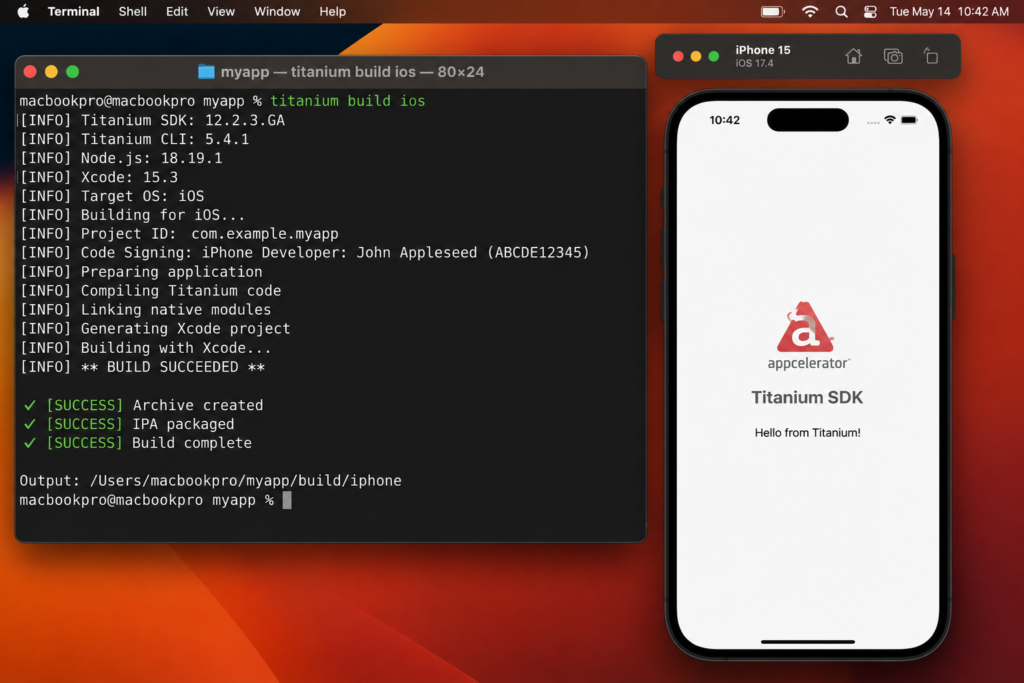
The First iOS Build Command
For a standard Titanium application, the fundamental command is:
ti build -p iosTitanium’s CLI documentation lists this as the standard iOS build command. It can build the application for an iOS simulator, while the target can be changed for a physical device.
This command does substantially more than simply “compile JavaScript.” Titanium prepares the iOS side of the application, resolves the selected SDK and project settings, incorporates required modules and native components, and hands the appropriate work to Apple’s build tools.
The exact output depends on the target and build options, but the key idea is simple:
ti build -p ios is the entry point for turning a Titanium project into an iOS build.
Building for a Specific Simulator
When multiple simulators are installed, Titanium lets you specify the desired simulator using the -C option.
For example:
ti build -p ios -C "iPad Retina"Titanium’s documentation identifies -C / --device-id as the mechanism for selecting a specific simulator or device target.
In practice, simulator names vary according to the Xcode version and installed simulator runtimes. That is why copying a simulator name from an old tutorial may fail on a modern machine.
When diagnosing simulator-related problems, use Titanium’s current help and information commands rather than assuming a name from an older article:
ti build --help
ti info -t ios
Building Directly to an iPhone or iPad
A simulator is not the same as a physical device. Installing an application on a real iPhone or iPad introduces Apple’s code-signing requirements.
Titanium’s official deployment documentation says that you need a development certificate and a development provisioning profile before deploying an application to an iOS device for testing.
A device build can look like this:
ti build -p ios -T device -C <DEVICE_UDID>Titanium also supports specifying the developer certificate and provisioning profile explicitly:
ti build -p ios -T device \
  -C <DEVICE_UDID> \
  -V "<DEVELOPER_CERTIFICATE_NAME>" \
  -P <PROVISIONING_PROFILE_UUID>
The official CLI documentation notes that if -V and -P are omitted, Titanium can prompt for the required signing information.
What Is a Provisioning Profile?
A provisioning profile is an Apple-controlled authorization package that connects an app’s identity with signing credentials and, for development scenarios, the devices that are allowed to run it.
A simple mental model is:
Certificate = who signed the app
Bundle/App ID = which app it is
Provisioning profile = under what conditions that signed app is allowed to run
The exact Apple signing system is more sophisticated than that analogy, but it is useful for understanding why a valid certificate alone does not automatically make a development build installable on every device.
Titanium’s official device-deployment guide describes the traditional development workflow as registering the developer account, obtaining a certificate, registering devices, creating an App ID, creating a development provisioning profile, and then building the app with that profile embedded in the application bundle.
Why “CodeSign Failed” Does Not Necessarily Mean Your Code Is Wrong
One of the most confusing aspects of an iOS build is that a failure near the end of the build can have nothing to do with JavaScript.
A build can fail because:
The certificate does not match the app
The provisioning profile is wrong
The profile has expired or lacks the device
The Bundle Identifier does not match the Apple App ID
Xcode is not using the expected developer installation
A native module is incompatible with the current Titanium SDK
The project is being built with an incompatible toolchain
Titanium’s own FAQ specifically notes code-signing failures and provisioning-profile mismatches as common causes of iOS build problems. It also documents a particular case in which projects stored in iCloud folders can trigger Command CodeSign failed with a nonzero exit code, recommending that the project be moved to a local non-iCloud directory.
The lesson is important: do not treat every Xcode error as a JavaScript error. Read the final build output and identify which layer failed.
Building an iOS App for Distribution
A development build and an App Store build are not interchangeable.
Titanium’s documentation separates deployment from distribution. Deployment means putting the application onto a device for testing; distribution means preparing the application for broader delivery, such as the App Store or other approved distribution methods.
For an App Store-oriented build, Titanium provides build targets and deployment types intended for distribution workflows. One example is:
ti build -p ios --deploy-type production -T dist-appstoreThis usage is demonstrated in a current real-world Titanium application repository and corresponds to a production App Store build rather than a normal simulator run.
The exact signing and distribution configuration still depends on Apple’s developer-account setup and the credentials associated with the app.
App Store Builds in 2026: The Apple Requirement You Cannot Ignore
This deserves separate emphasis because it changes the practical answer for many older Titanium projects.
As of April 28, 2026, Apple requires apps submitted to App Store Connect to use the iOS 26 SDK or later, built with Xcode 26 or later.
Therefore, simply finding an old tutorial that says “install Xcode and run ti build -p ios” is not enough for a modern App Store release.
The project must live inside a currently compatible stack.
Titanium SDK 13.0.0 explicitly introduced iOS 26/Xcode 26 support, and the later 13.3.x releases continue the current supported line. The latest stable release listed by TiDev is 13.3.1.GA.
This is why developers maintaining an old Appcelerator Titanium application should evaluate the entire project before upgrading only one component.
The Difference Between Titanium SDK, Titanium CLI, and Xcode
These names are often mixed together, but they perform different jobs.
Titanium SDK
The Titanium SDK is the development framework and runtime layer that gives your JavaScript application access to Titanium APIs and native platform capabilities. The current Titanium project describes it as a framework for building native cross-platform mobile applications with JavaScript.
Titanium CLI
The Titanium CLI is the command-line tool you use to create, configure, inspect, and build Titanium projects. Its executable is ti or titanium.
Xcode
Xcode is Apple’s development environment and toolchain. Titanium depends on Apple’s tooling for iOS compilation, simulator support, device deployment, and the broader signing/build ecosystem.
An easy way to remember it is:
Titanium SDK = the application framework
Titanium CLI = the build controller
Xcode = Apple’s iOS toolchain
A problem in any one of the three can affect the final build.
How Titanium Handles Native iOS APIs
One of Titanium’s defining ideas is that JavaScript does not mean that the final application must behave like a web page.
The Titanium repository describes a model in which the SDK compiles application code into a native executable for the target platform. It also provides Hyperloop, which allows JavaScript code to access native APIs and libraries directly.
For advanced iOS projects, this matters because a developer may need to use a native Apple API that is not represented by an existing high-level Titanium abstraction.
Hyperloop is designed for this type of extension. The Titanium project documents direct native API access and the ability to use native classes and third-party libraries from JavaScript.
This also means that a Titanium application can have dependencies that extend well beyond ordinary JavaScript packages.
Swift Package Manager and Modern Native Dependencies
Modern Titanium iOS development has also evolved around Apple’s native dependency ecosystem.
Titanium SDK 13.1.0 added support for Swift Package Manager module dependencies, allowing iOS modules to declare Swift Package Manager dependencies. Titanium’s SDK repository documents spm.json support and explains how host-linked and embedded dependencies are incorporated into generated iOS builds.
This is significant for legacy Appcelerator projects because native dependencies are often the hidden reason an otherwise straightforward upgrade becomes complicated.
If a project uses several native iOS modules, developers should check the minimum Titanium SDK version required by each module before assuming that upgrading the main application SDK is enough.
A Safe Build Workflow for a New Titanium iOS Project
A sensible current workflow is:
npm install -g titanium

ti sdk install latest

ti setup

ti info

ti build -p ios
The Titanium CLI documentation explicitly recommends installing the CLI through npm, installing a stable SDK, running the setup process, and using ti info to confirm that development dependencies are correctly detected.
For a project that already exists, first inspect its tiapp.xml and determine which Titanium SDK it expects. Titanium documents SDK selection precedence, so a project may continue using an older SDK even after you install a newer one globally.
That is an extremely common source of confusion:
Installing a new Titanium SDK does not automatically mean the current project is now using it.
What to Check in tiapp.xml
For an existing Titanium application, tiapp.xml is one of the first files worth examining.
The important areas include the application identifier, SDK version, iOS-specific configuration, permissions, and modules.
The SDK version can be explicitly associated with the application through the sdk-version entry, which Titanium gives precedence over other SDK-selection mechanisms.
For iOS privacy-sensitive functionality, the application may also need the appropriate usage descriptions in its property-list configuration. Titanium’s documentation, for example, describes keys such as NSCameraUsageDescription, NSMicrophoneUsageDescription, NSContactsUsageDescription, and NSPhotoLibraryUsageDescription for applications that use the corresponding APIs.
The exact permission requirements depend on what the application actually does.
Common Titanium iOS Build Problems
“Unable to find an iOS Simulator”
One common cause is that Xcode’s command-line tools are not pointing at the expected Xcode installation.
Titanium’s FAQ recommends checking Xcode’s Command Line Tools setting and selecting the correct Xcode installation. It also notes that when newer Xcode support was introduced, using an appropriate newer Titanium SDK mattered.
The practical checks are:
xcode-select -p
xcodebuild -version
ti info -t ios
The goal is to verify that the shell, Xcode, and Titanium all agree about which development environment is available.
“Unable to find any non-expired provisioning profiles”
This usually indicates that the build system cannot find a development or distribution profile that matches the application’s signing requirements.
Check the:
Bundle Identifier
certificate
provisioning profile
profile expiration
device registration, where applicable
Titanium’s documentation specifically identifies provisioning-profile and certificate configuration as common sources of iOS deployment problems.
Command CodeSign failed with a nonzero exit code
This is a broad Xcode signing failure rather than one specific Titanium error.
The correct response is to inspect the lines immediately surrounding the signing failure. Titanium’s FAQ specifically documents one scenario involving projects located in iCloud folders and recommends moving the project to a local folder before rebuilding.
It is also important not to assume that reinstalling Titanium will solve every code-signing failure. If signing assets are wrong, the underlying problem is still an Apple development-account configuration issue.
The project builds but a module fails
This is particularly important with older Appcelerator applications.
Native Titanium modules have their own minimum SDK versions and native framework requirements. A recent example is the current Titanium Facebook iOS module, whose release notes state that its newer iOS release requires Titanium SDK 13.0.0 or later and an iOS deployment target of 15.0 or newer.
That illustrates a general rule:
The application SDK, native modules, and Apple toolchain must be treated as one compatibility set.
Updating only the application SDK may expose incompatibilities inside older modules.
Why Old Appcelerator Tutorials Can Be Misleading
Developers searching for “Appcelerator Titanium SDK build iOS” will encounter a large amount of historical material.
Some of it remains conceptually useful, but commands and compatibility assumptions can be outdated.
The name itself can be misleading because the current SDK is maintained under TiDev, and the official project now describes Titanium as an open-source native application framework. TiDev also states that Titanium trademark and patent rights were transferred to TiDev in 2022.
More importantly, Apple and Titanium have both moved forward.
A tutorial written for:
Xcode 12
iOS 14
Titanium SDK 9
or an old appc-based workflow
should not automatically be treated as a valid 2026 build guide.
The current CLI uses ti, and the active stable SDK line is now 13.3.x.
ti Versus appc
Older Appcelerator projects commonly contain commands such as appc run.
Current Titanium documentation uses ti / titanium for application and module building. The CLI repository identifies ti as the executable and lists commands such as ti build, ti sdk, ti setup, and ti info.
That does not mean every historical project instantly becomes unusable. It means developers should be careful when copying instructions between generations of the Titanium ecosystem.
For new work, the current TiDev Titanium CLI workflow is the better reference point.
What About Titanium 14?
There is an important distinction between stable releases and continuous builds.
The official Titanium downloads page currently lists 13.3.1.GA as the latest stable release. Separately, the CI build feed shows 14.0.0 development builds on the main branch in August 2026. Those CI builds are explicitly described as unstable and not intended for production use.
Therefore, seeing Titanium 14 in a development-build listing does not mean Titanium 14 is the recommended stable SDK for an ordinary production application.
For a production project, the important distinction is:
GA/stable release ≠ continuous development build
That distinction prevents developers from accidentally using an experimental SDK merely because it has a higher version number.
Does Titanium Still Support Native iOS Development?
Yes.
The current Titanium SDK project explicitly lists iOS and Android as its supported native platforms. The project continues to receive iOS-specific updates, including recent fixes and features, while the 13.x release line has been updated for Apple’s modern SDK requirements.
Recent Titanium releases also demonstrate continuing work on modern iOS capabilities. Titanium 13.0.0 added iOS 26/Xcode 26 support, while later releases addressed additional iOS changes and Apple platform behavior.
That makes Titanium more than a legacy build tool that merely happens to compile old projects. It remains an actively maintained open-source mobile development platform.
Advantages of Building iOS Apps with Titanium
The main attraction is code reuse.
A developer can use JavaScript and Titanium’s APIs to target both iOS and Android while sharing a large portion of application logic. Titanium also provides access to native APIs and native extensions when platform-specific functionality is required.
Another advantage is that teams with an existing Titanium codebase do not necessarily need to rewrite an application in Swift simply because Apple’s SDKs have evolved.
For organizations maintaining a mature application, a supported Titanium upgrade can be substantially different from a complete rewrite.
Titanium’s native-oriented architecture can also be useful when a project needs functionality beyond what a traditional web wrapper provides.
Limitations and Trade-Offs
Titanium is not a magic abstraction that eliminates iOS development complexity.
The biggest practical limitation is that Apple’s platform rules still apply. You still need Xcode, Apple’s SDKs, device signing, certificates, provisioning, and App Store compliance. Titanium can orchestrate the process, but it does not replace Apple’s developer infrastructure.
The second major challenge is dependency compatibility.
An older application may contain modules designed for much older Titanium SDKs or iOS deployment targets. When one component moves forward, another may have to move with it.
The third is that developers sometimes rely on tutorials written for historical Appcelerator releases. In a platform where Apple’s required SDK version can change independently of the application framework, old instructions can become surprisingly risky.
A Recommended 2026 Build Checklist
Before running a production iOS build, make sure the following chain is internally consistent:
| Check | What to verify |
|---|---|
| Mac | You are building on macOS |
| Xcode | Current Xcode installation is available to command-line tools |
| Apple SDK | The installed iOS SDK satisfies your distribution target |
| Titanium CLI | Current ti command is installed |
| Titanium SDK | Project uses the intended supported version |
| Node.js | Meets the Titanium CLI’s current requirement |
| Modules | Native modules support the selected Titanium SDK |
| Bundle ID | Matches the Apple app identifier |
| Signing | Certificate/profile are valid |
| Device | Registered and authorized for development when needed |
| Distribution | Production signing and App Store requirements are satisfied |
The most important 2026 rule is the Apple submission requirement: App Store uploads require Xcode 26 or later with the iOS 26 SDK or later.
A Practical Command Sequence
For a typical project, a compact workflow looks like this:
# Verify Titanium and the environment
ti --version
ti info -t ios

# See installed SDKs
ti sdk list

# Install the latest stable SDK
ti sdk install latest

# Build for the iOS simulator
ti build -p ios
For a physical device:
ti build -p ios -T device -C <DEVICE_UDID>For a production App Store-oriented build:
ti build -p ios --deploy-type production -T dist-appstoreThese commands reflect the current Titanium CLI workflow documented by TiDev and examples used by active Titanium projects.
Frequently Asked Questions
Can Titanium SDK build iOS apps without a Mac?
No. Titanium’s current CLI documentation explicitly states that a Mac is required to build for iOS.
What is the latest stable Titanium SDK for iOS?
As of August 28, 2026, the official downloads page lists Titanium SDK 13.3.1.GA, published July 21, 2026, as the latest stable release.
Does Titanium support Xcode 26?
Yes. Titanium SDK 13.0.0 was specifically released with full support for Xcode 26 and iOS 26, and the current 13.3.x line follows that modern toolchain direction.
What command builds a Titanium iOS app?
The basic command is:
ti build -p iosFor a connected iOS device, use the device target and device identifier as appropriate.
Do I need Apple signing credentials for the simulator?
A simulator build does not have the same device-installation signing requirements as installing an application on a physical iPhone or iPad. Device deployment requires the appropriate Apple development signing setup, including a development certificate and provisioning profile.
Can an old Appcelerator Titanium project still be built?
Often yes, but that depends on its Titanium SDK, native modules, project configuration, and compatibility with the current Apple toolchain. A legacy project may require SDK, module, deployment-target, and signing updates rather than just installing the newest Xcode.
Should production apps use Titanium 14 development builds?
Not merely because they are newer. The official downloads site distinguishes stable GA releases from continuous builds and explicitly warns that CI builds are not stable and should not be used in production. As of August 2026, 13.3.1.GA is the latest stable release, while Titanium 14 builds are appearing in development channels.
The Bottom Line
For anyone searching for “Appcelerator Titanium SDK build iOS,” the modern answer is straightforward: use the current TiDev Titanium CLI and a supported Titanium SDK on a Mac with Apple’s Xcode toolchain.
In 2026, the most important compatibility fact is that Apple requires App Store submissions to use Xcode 26 or later with the iOS 26 SDK or later. Titanium addressed that requirement in its 13.x series, with 13.3.1.GA currently the latest stable release listed by TiDev.
The essential command remains simple:
ti build -p iosBut successful production development depends on much more than that one command. The Titanium SDK, Titanium CLI, Node.js version, Xcode installation, iOS SDK, native modules, Bundle ID, certificates, provisioning profiles, and Apple’s submission requirements all have to line up.
For a new project, that alignment is relatively manageable. For a legacy Appcelerator application, the safest approach is to treat an iOS build upgrade as a full toolchain compatibility exercise, not simply as an Xcode upgrade or a Titanium SDK upgrade in isolation.
Also Read: Drone Flight Log Database Fields Telemetry Battery Swap Geotagged Images

1 Comment
Pingback: AnyRouter Explained | AI Model Routing, Pricing, Features, and What to Know in 2026